This is the multi-page printable view of this section. .
Deployment
- 1: Install Pigsty for Production
- 2: Prepare Resources for Serious Deployment
- 3: Planning Architecture and Nodes
- 4: Setup Admin User and Privileges
- 5: Sandbox
- 6: Vagrant
- 7: OpenTofu
- 8: Security Considerations
Production deployments require Architecture Planning and Preparation beyond the Getting Started procedure. This chapter describes the complete deployment process and recommended practices for production.
Before production deployment, test the workflow in the Pigsty Sandbox. Use Vagrant to create a local 4-node sandbox. Use OpenTofu to create a larger simulation environment in the cloud.
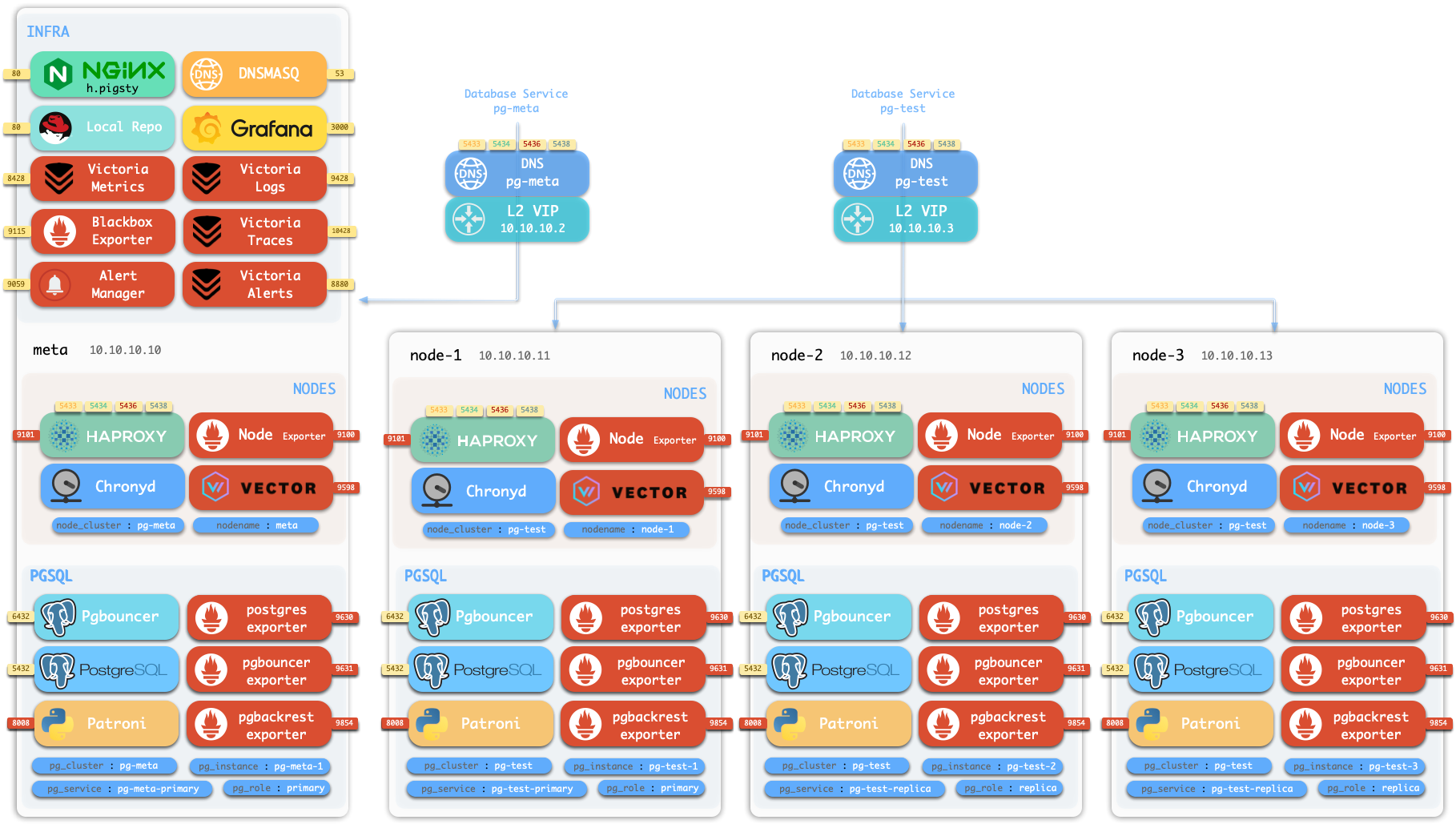
Production high availability typically requires at least three nodes. Review the core Concepts and common administration procedures before deployment. These procedures include Configuration, Ansible Playbooks, and Security Hardening for enterprise compliance.
1 - Install Pigsty for Production
This guide describes production deployment on multiple nodes. For single-node demonstrations or development, use Getting Started.
Summary
- Prepare the nodes according to your architecture plan.
- Install a supported Linux operating system.
- Configure SSH access.
- Use an administration account with passwordless
sshandsudoaccess. - Run the installation command:
The installation script downloads and extracts Pigsty into your home directory. It also installs the dependencies. Then complete configuration and deployment.
Before you run deploy.yml, examine and edit pigsty.yml.
This file is the configuration inventory.
After deployment, open the Web UI through the IP address or domain on ports 80/443.
Connect to PostgreSQL on port 5432.
Installation usually takes 3-10 minutes, depending on server resources and network speed. Offline installation can reduce this time. If you do not need monitoring, Slim Installation installs fewer components and takes less time.
Example: 20-node production simulation on Ubuntu 24.04, x86_64
demo/install-simu.cast — /demo/install-simu.cast
Prepare
Use this checklist to complete the deployment preparations:
| Item | Requirement | Item | Requirement |
|---|---|---|---|
| Node | At least 1C2G, no upper limit | Plan | Multiple homogeneous nodes: 2/3/4 or more |
| Disk | /data as default mount point | FS | xfs recommended; ext4/zfs as needed |
| VIP | L2 VIP, optional (unavailable in cloud) | Network | Static IPv4, single-node can use 127.0.0.1 |
| CA | Self-signed CA or specify existing certs | Domain | Local/public domain, optional, default i.pigsty |
| Kernel | Linux x86_64 / aarch64 | Linux | el8, el9, el10, d12, d13, u22, u24, u26 |
| Locale | C.UTF-8 or C | Firewall | Ports: 80/443/22/5432 (optional) |
| User | Avoid root and postgres | Sudo | sudo privilege, preferably with nopass |
| SSH | Passwordless SSH via public key | Accessible | ssh <ip|alias> sudo ls no error |
Install
Use one of these commands to install the Pigsty source package into ~/pigsty.
This method is recommended and also installs Ansible and other deployment dependencies.
You can instead download a release or clone the source repository.
If you use git, select a released version before deployment:
After a manual download or clone, run bootstrap to install Ansible and the other dependencies.
You can also install them yourself.
Configure
The inventory defines the deployment configuration.
Pigsty uses pigsty.yml as the default configuration file.
Edit it to define the required deployment.
The configure script is an optional configuration wizard.
It generates an inventory with defaults for your environment:
The default output file is ~/pigsty/pigsty.yml.
Examine this file and make the necessary changes before deployment.
Use the configuration templates as examples.
You can also edit pigsty.yml directly without the wizard:
The wizard replaces only the current node IP address.
Use -s to skip this replacement.
For multiple nodes, replace the other IP addresses manually.
Change default passwords, add nodes, and adjust other configuration values for your environment.
Common configure parameters:
| Parameter | Description |
|---|---|
-c|--conf | Specify config template relative to conf/, without .yml suffix |
-v|--version | PostgreSQL major version 14 through 19; PG19 is currently Beta |
-r|--region | Upstream repo region for faster downloads: default|china|europe |
-n|--non-interactive | Use CLI params for primary IP, skip interactive wizard |
-x|--proxy | Configure proxy_env from current environment variables |
If the node has multiple IP addresses, select its primary address with -i|--ip <ipaddr> or enter it interactively.
The script replaces 10.10.10.10 with the current node’s primary IPv4 address.
Use a static private address.
Do not use a public IP address.
Review the generated ~/pigsty/pigsty.yml before deployment.
Change default passwords and credentials before deployment. See Security Recommendations.
Deploy
The deploy.yml playbook applies the configuration to all target nodes:
The final installation output includes pgsql init done and PLAY RECAP.
Incorrect updates to Linux or PGDG repositories can break dependencies and cause deployment failures. These failures are common. For production, we strongly recommend verified offline packages for offline installation.
Another run of deploy.yml on an existing deployment can restart services and overwrite configuration files.
Examine the required changes before you run it again.
Interface
The 4-node template creates this deployment structure:
| ID | NODE | PGSQL | INFRA | ETCD |
|---|---|---|---|---|
| 1 | 10.10.10.10 | pg-meta-1 | infra-1 | etcd-1 |
| 2 | 10.10.10.11 | pg-test-1 | - | - |
| 3 | 10.10.10.12 | pg-test-2 | - | - |
| 4 | 10.10.10.13 | pg-test-3 | - | - |
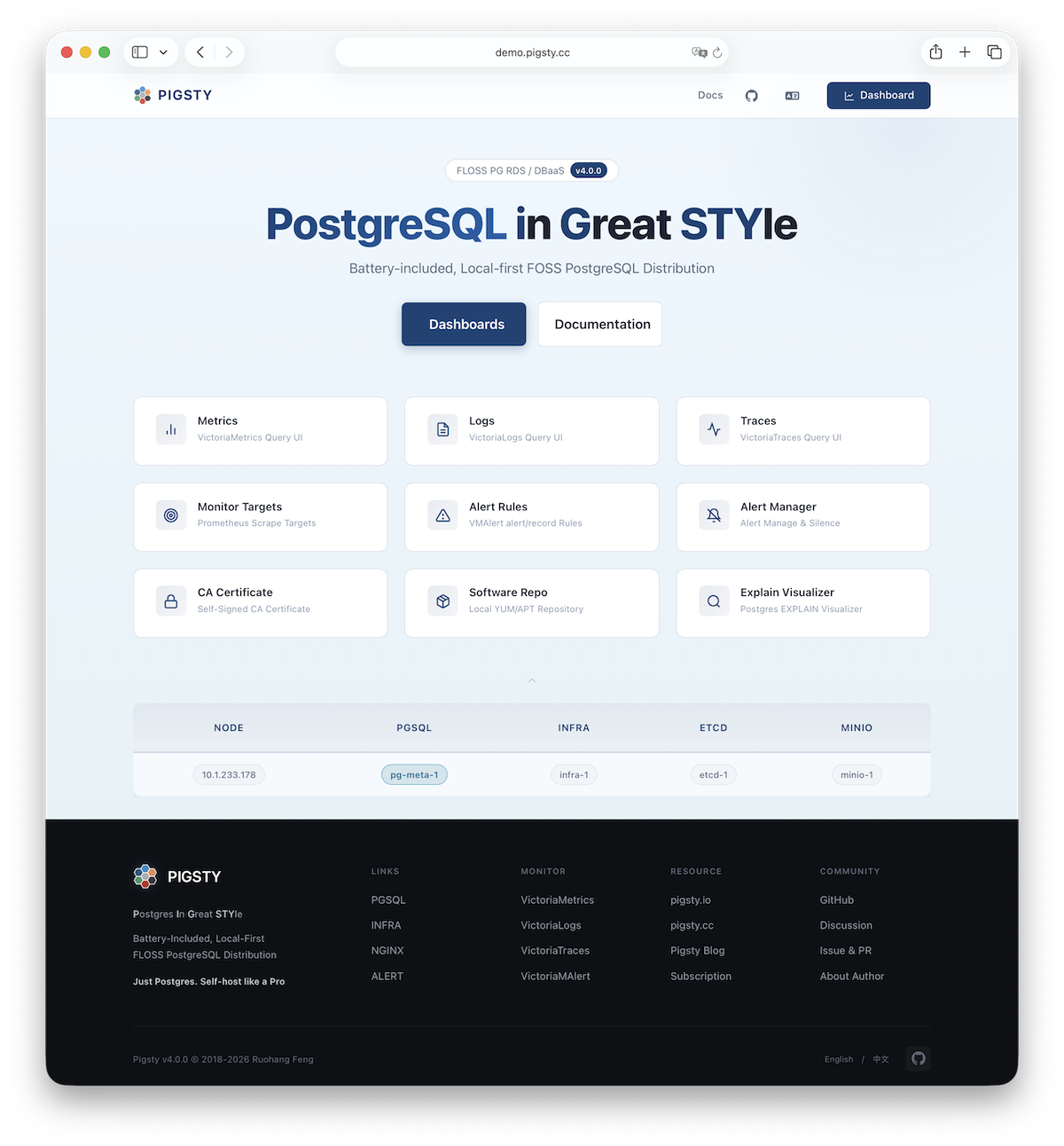
The INFRA module supplies the Web UI through Nginx on ports 80/443.
The PGSQL module supplies a PostgreSQL server on port 5432.
You can also connect through PgBouncer or HAProxy.
For production HA clusters, use service access to route traffic automatically.
More
After installation, open the Web UI and connect to PostgreSQL on port 5432. To deploy and monitor additional clusters, add their definitions to the inventory. Then run the applicable commands:
Most modules require the NODE module first.
See the module reference.
Available modules include PGSQL, INFRA, NODE, ETCD, MINIO, REDIS, and DOCKER.
2 - Prepare Resources for Serious Deployment
Pigsty runs on nodes, which can be physical machines or virtual machines. This document describes the planning and preparation for deployment.
Node
Pigsty runs on the Linux kernel with x86_64 or aarch64 architecture.
A node supplies a bare Linux operating system that you can access through SSH.
It can be a physical machine, virtual machine, or container with systemd support.
The node must have systemd, sudo, and sshd.
A deployment requires at least 1 node.
You can deploy to multiple nodes in one playbook run, or add nodes later.
The minimum resources are 1C1G; we recommend at least 1C2G.
There is no upper resource limit.
Pigsty automatically tunes parameters for the available resources.
Select the node count for your requirements; see Architecture Planning. A single-node deployment with external backups provides recovery protection. For production, we recommend multiple nodes. A working HA deployment requires at least 3 nodes. A 2-node deployment provides Semi-HA.
Disk
Pigsty uses /data as the default data directory.
If you have a dedicated data disk, mount it at /data.
Use /data1, /data2, and /dataN for additional disks.
To change a data directory, set the applicable parameter:
| Name | Description | Default |
|---|---|---|
node_data | Node main data directory | /data |
pg_fs_main | PG main data directory | /data/postgres |
pg_fs_backup | PG backup directory | /data/backups |
etcd_data | ETCD data directory | /data/etcd |
infra_data | Infra data directory | /data/infra |
nginx_data | Nginx data directory | /data/nginx |
minio_data | Silo data directory | /data/minio |
redis_fs_main | Redis data directory | /data/redis |
kafka_data | Kafka data directory | /data/kafka |
The native MySQL 8.4 pilot module always uses /var/lib/mysql.
It does not currently expose a data-directory parameter.
Filesystem
You can use any supported Linux filesystem for data disks.
For production, we recommend xfs.
xfs is a standard Linux filesystem with good performance.
Its copy-on-write (CoW) support permits instant cloning of large database clusters.
Silo deployments with multiple drives require xfs.
ext4 is another supported choice.
It has more data recovery tools but does not support CoW.
zfs supplies RAID and snapshots, but adds significant performance overhead and requires separate installation.
Select the filesystem for your requirements. Avoid NFS for database services.
Pigsty expects root:root ownership and 755 permissions on /data.
Administrators can assign ownership to directories directly under /data.
Each application runs with a dedicated account in its own subdirectory.
See FHS for the directory structure.
Network
The default online installation requires outbound Internet access. Offline installation does not require Internet access.
Assign a fixed IPv4 address to each node for internal communication.
Pigsty uses this primary address on the main network interface as the unique node identifier.
If a single-node deployment has no fixed IP address, use 127.0.0.1.
Public IP addresses as node identifiers can cause security and connection problems. Always use internal IP addresses for node identifiers.
VIP
Pigsty supports optional Layer 2 virtual IP addresses (L2 VIPs).
NODE clusters use keepalived; PGSQL clusters use vip-manager.
To use this feature, assign an L2 VIP address to each node or database cluster. This is usually straightforward on your own hardware. Public cloud networks can make this configuration difficult.
For Node VIP or PG VIP, all participating nodes must use the same L2 network.
CA
Pigsty creates a self-signed certificate authority (CA) for each deployment. The CA issues the encryption certificates.
You can instead use an existing enterprise CA or self-signed CA to issue the required certificates.
Domain
Pigsty uses the local static domain i.pigsty for the Web UI by default.
You can also use the node IP address.
For production, we recommend a domain name to enable HTTPS and encrypted data transfer. Domain names also let multiple services share one port.
For Internet access, use a public DNS provider, such as Cloudflare or AWS Route53. Point the domain to the node’s public IP address. For LAN or office access, use internal DNS with the node’s internal IP address.
For local access, add this entry to /etc/hosts on each computer that accesses the Web UI:
Linux
Pigsty runs on Linux and currently targets 16 platform combinations. These combinations cover eight distribution major versions and two architectures. See the Compatible OS List.
The recommended operating system versions are:
- Rocky Linux 9.8 / 10.2.
- Debian 12.15 / 13.6.
- Ubuntu 22.04.5 / 24.04.4 / 26.04.0.
On macOS or Windows, use a virtual machine or a Docker image with systemd.
We strongly recommend a fresh operating system installation. If the server already runs Nginx, PostgreSQL, or similar services, consider a new node.
In a multi-node deployment, use the same Linux distribution, architecture, and version on every node. Mixed environments can work, but they are unsupported and can cause unpredictable problems.
Locale
We recommend en_US as the primary operating system language so PostgreSQL writes logs in English.
At minimum, make sure that this locale is available.
Some distributions, including Debian, do not always supply en_US by default.
Use these commands to enable it:
For PostgreSQL 17 and later, we strongly recommend the built-in C.UTF-8 collation as the default.
The configuration wizard selects C.UTF-8 when the PostgreSQL version and operating system support it.
Ansible
Pigsty uses Ansible on the administration node to control all managed nodes. See Installing Ansible.
By default, Pigsty installs Ansible on INFRA nodes. These nodes can serve as administration nodes or backup administration nodes. In a single-node deployment, one node has both roles. It is the administration node that runs Ansible and the INFRA node that hosts infrastructure.
Pigsty
Use one of these commands to install the current default Pigsty source:
To install a specific version, supply -s <version>:
To install the latest beta version, use one of these commands:
For development, you can clone the repository directly:
For an environment without Internet access, obtain the source tarball from GitHub Releases or a Pigsty repository:
3 - Planning Architecture and Nodes
Pigsty uses a modular architecture. Select the modules for your requirements and define the deployment through declarative configuration.
Common Patterns
Use these common deployment patterns as a starting point. Adjust the configuration for your requirements:
| Pattern | INFRA | ETCD | PGSQL | MINIO | Description |
|---|---|---|---|---|---|
Single-node (meta) | 1 | 1 | 1 | Single-node deployment default | |
Slim deploy (slim) | 1 | 1 | Database only, no monitoring infra | ||
Infra-only (infra) | 1 | Monitoring infrastructure only | |||
Rich deploy (rich) | 1 | 1 | 1 | 1 | Single-node + object storage + local repo with all extensions |
| Multi-node Pattern | INFRA | ETCD | PGSQL | MINIO | Description |
|---|---|---|---|---|---|
Two-node (dual) | 1 | 1 | 2 | Semi-HA, tolerates specific node failure | |
Three-node (trio) | 3 | 3 | 3 | Standard HA, tolerates any one failure | |
Four-node (full) | 1 | 1 | 1+3 | Demo setup, single INFRA/ETCD | |
Production (simu) | 2 | 3 | n | n | 2 INFRA, 3 ETCD |
| Large-scale (custom) | 3 | 5 | n | n | 3 INFRA, 5 ETCD |
Select the architecture for your reliability requirements and available resources. Production deployments with full high availability require at least 3 nodes. With 2 nodes, use the Semi-HA configuration.
Architecture Consulting Services can help you plan the Pigsty configuration.
Trade-offs
- Monitoring requires at least 1 INFRA node. Production typically uses 2 nodes; large deployments use 3.
- PostgreSQL HA requires at least 1 ETCD node. Production typically uses 3 nodes; large deployments use 5. An even-member ETCD cluster tolerates no more failures than an odd-member cluster with one fewer member. Prefer an odd number of members.
- Silo object storage requires at least 1 MINIO node. Production typically uses 4 or more nodes in an MNMD cluster.
- Production PostgreSQL clusters typically have at least two nodes: a primary and a replica. More demanding deployments use 3 nodes. Deployments with high read loads can have dozens of replicas.
- Advanced PostgreSQL configurations include offline instances, synchronous instances, standby clusters, and delayed clusters.
Single-Node Setup
The single-node configuration puts all components on one node. It installs four core modules by default. Use it for demonstrations, development, or testing.
An external S3/MinIO backup repository can supply the required recovery time and recovery point objectives (RTO/RPO). With this protection, a single-node configuration can serve standard production environments.
These single-node variants are available:
- Rich (
rich) is a production template with local Silo storage, a local software repository, and all PostgreSQL extensions. - Slim (
slim) installs PGSQL and ETCD without the monitoring infrastructure. Slim Installation can expand to multiple nodes with HA. - Infra-only (
infra) installs only INFRA to monitor other instances. It does not install database services. - Alternative kernels replace the standard PostgreSQL kernel with a derivative.
Templates include
pgsql,mssql,polar,ivory, andmysql. Other templates includepgtde,oriole,agens, andpgedge.
Two-Node Setup
The two-node configuration enables database replication and Semi-HA. It improves data redundancy and supplies limited automatic failover:
Automatic recovery depends on which node fails:
- If
node-1fails, manually promotenode-2. Automatic failover is unavailable. - If
node-2fails,node-1is automatically promoted.
Three-Node Setup
The three-node template supplies the minimum full HA configuration. It tolerates the failure of any one node and recovers automatically.
| ID | NODE | PGSQL | INFRA | ETCD |
|---|---|---|---|---|
| 1 | node-1 | pg-meta-1 | infra-1 | etcd-1 |
| 2 | node-2 | pg-meta-2 | infra-2 | etcd-2 |
| 3 | node-3 | pg-meta-3 | infra-3 | etcd-3 |
Four-Node Setup
The Pigsty Sandbox uses the standard four-node configuration.
In the demonstration configuration, INFRA and ETCD do not have HA. You can extend the configuration as follows:
| ID | NODE | PGSQL | INFRA | ETCD | MINIO |
|---|---|---|---|---|---|
| 1 | node-1 | pg-meta-1 | infra-1 | etcd-1 | minio-1 |
| 2 | node-2 | pg-test-1 | infra-2 | etcd-2 | |
| 3 | node-3 | pg-test-2 | etcd-3 | ||
| 4 | node-4 | pg-test-3 |
More Nodes
If your virtualization environment or hardware resources permit it, use more nodes to deploy modules separately. Dedicated nodes can improve reliability, monitoring, and performance.
| ID | NODE | INFRA | ETCD | MINIO | PGSQL |
|---|---|---|---|---|---|
| 1 | 10.10.10.10 | infra-1 | pg-meta-1 | ||
| 2 | 10.10.10.11 | infra-2 | pg-meta-2 | ||
| 3 | 10.10.10.21 | etcd-1 | |||
| 4 | 10.10.10.22 | etcd-2 | |||
| 5 | 10.10.10.23 | etcd-3 | |||
| 6 | 10.10.10.31 | minio-1 | |||
| 7 | 10.10.10.32 | minio-2 | |||
| 8 | 10.10.10.33 | minio-3 | |||
| 9 | 10.10.10.34 | minio-4 | |||
| 10 | 10.10.10.40 | pg-src-1 | |||
| 11 | 10.10.10.41 | pg-src-2 | |||
| 12 | 10.10.10.42 | pg-src-3 | |||
| 13 | 10.10.10.50 | pg-test-1 | |||
| 14 | 10.10.10.51 | pg-test-2 | |||
| 15 | 10.10.10.52 | pg-test-3 | |||
| 16 | …… |
4 - Setup Admin User and Privileges
Pigsty uses an operating system administration account with SSH and sudo access to every managed node. The account must be able to log in through SSH and run sudo commands on these nodes. Passwordless access is the standard configuration; password prompts are also supported.
User
Use an account name such as dba or admin.
Avoid root and postgres:
- You can deploy as
root, but this is not recommended for production. - Do not use
postgres(pg_dbsu) as the administration account.
Passwordless
You can enter passwords for each ssh and sudo command instead of configuring passwordless access.
When you run playbooks, use -k|--ask-pass for the SSH password prompt.
Use -K|--ask-become-pass for the sudo password prompt:
If your security policy prohibits passwordless ssh or sudo, use these options.
You can also configure a longer sudo password cache time in sudoers to reduce repeated prompts.
Create Admin User
Your server or virtual machine provider usually creates an initial administration account. If you need a different account, the deployment playbook can create one.
Use an existing administration account or root access to create the new account:
The existing account creates a dedicated dba account with UID 88 by default.
The playbook also configures sudo and SSH access.
These parameters control the account:
| Name | Description | Default |
|---|---|---|
node_admin_enabled | Enable node admin user | true |
node_admin_uid | Node admin user UID | 88 |
node_admin_username | Node admin username | dba |
Sudo
Give the administration account sudo access on every managed node.
Passwordless sudo is recommended.
For an account named vagrant, create or edit its sudoers file:
For the dba account, use this content in /etc/sudoers.d/dba:
If your security policy prohibits passwordless sudo, remove NOPASSWD::
Ansible uses sudo to run commands with root privileges on managed nodes.
If an environment has no sudo, install it first.
This can apply to Docker containers.
SSH
The current local account should have passwordless SSH access to the administration account on every managed node. The local and remote account names can differ. The following procedures describe the basic SSH configuration.
Generate SSH Key
If you do not have an SSH key pair, generate one:
The bootstrap script also generates a key pair if none exists.
Copy SSH Key
Copy the public key to the administration account’s ~/.ssh/authorized_keys file on every node, including the local node.
Use ssh-copy-id:
Using Alias
If a node requires a jumpserver, another port, or different credentials, define an SSH alias in ~/.ssh/config:
Set ansible_host to this SSH alias in the inventory:
Ansible can also use SSH connection parameters directly. See the Ansible Inventory Guide.
This method supports private nodes behind jumpservers and nodes with different ports or credentials. It also lets you use a local laptop as the administration node.
Check Accessibility
From the administration node, the current account should reach every managed node through passwordless ssh.
The remote administration account should also have passwordless sudo access.
Run this command from the administration node for each managed node:
If the command returns without a password prompt or error, passwordless SSH and sudo access work.
Firewall
For production, configure the firewall to block unauthorized access to service ports. By default, block inbound access from office and Internet networks except these ports:
22for SSH node access.80for HTTP and443for HTTPS Web UI access.5432for PostgreSQL access.
If clients use other PostgreSQL service ports, permit those ports as required. See the complete port list.
5432: PostgreSQL database.6432: PgBouncer connection pooler.5433: PostgreSQL primary service.5434: PostgreSQL replica service.5436: PostgreSQL default service.5438: PostgreSQL offline service.
5 - Sandbox
Pigsty supplies a standard 4-node sandbox for learning, testing, and feature demonstrations. It uses fixed IP addresses and predefined identity values to make the demonstrations repeatable.
Description
The default sandbox has 4 nodes and uses the ha/full.yml template.
| ID | IP Address | Node | PostgreSQL | INFRA | ETCD | MINIO |
|---|---|---|---|---|---|---|
| 1 | 10.10.10.10 | meta | pg-meta-1 | infra-1 | etcd-1 | minio-1 |
| 2 | 10.10.10.11 | node-1 | pg-test-1 | |||
| 3 | 10.10.10.12 | node-2 | pg-test-2 | |||
| 4 | 10.10.10.13 | node-3 | pg-test-3 |
This example shows the sandbox configuration:
PostgreSQL Clusters
The meta node has a PostgreSQL cluster named pg-meta with one instance:
The other three nodes host the pg-test HA cluster with 3 instances:
The sandbox has two optional L2 VIPs.
Each VIP binds to the primary instance of its cluster, pg-meta or pg-test.
Infrastructure
The meta node also hosts these services:
- A single-node
etcdcluster that supplies the distributed configuration store (DCS) for PostgreSQL HA. - A single-node Silo
miniocluster that supplies S3-compatible object storage through the MINIO module.
The ha/full.yml template also defines three Redis example topologies and enables Docker on the INFRA node.
The standard deploy.yml playbook does not deploy Redis or Docker.
When required, run ./redis.yml and ./docker.yml separately.
Creating Sandbox
Use Vagrant to create a local sandbox from the supplied templates. Use OpenTofu to create a cloud sandbox.
Local Sandbox (Vagrant)
The local sandbox uses VirtualBox or libvirt to create virtual machines on your Mac or PC. It has no cloud resource charges. For the complete 4-node sandbox, provide at least 4 CPU cores and 8GB memory.
The current Vagrant configuration uses cloud-image/* boxes from Vagrant Cloud.
See Supported Images for available images, pinned versions, and architectures.
If the source does not pin a box version, Vagrant selects its currently available version.
Cloud Sandbox (Terraform)
The cloud sandbox uses public cloud APIs to create virtual machines. You can create and remove these resources for short tests and pay for their use.
Use spec/aliyun-full.tf to create a 4-node sandbox on Alibaba Cloud:
See the OpenTofu guide for details.
Other Specs
Pigsty also supplies other environment specifications.
Run these Makefile shortcuts from ~/pigsty/vagrant:
Single Node Devbox (meta)
Use the 1-node environment for the quick start, development, and testing:
Two Node Environment (dual)
Use the 2-node environment to test replication between a primary and a replica:
Three Node Environment (trio)
Use the 3-node environment to test basic high availability:
Production Simulation (simu)
Use the 20-node simulation to test a complete production environment:
This environment includes these nodes:
- 3 infrastructure nodes:
meta1,meta2, andmeta3. - 2 HAProxy proxy nodes.
- 4 MINIO (Silo) nodes.
- 5 ETCD nodes.
- 6 PostgreSQL nodes in 2 clusters with 3 nodes each.
6 - Vagrant
Vagrant creates local virtual machines from declarative configuration. Pigsty requires Linux. You can use Vagrant to create local Linux virtual machines for testing.
The recommended and validated versions are:
- Rocky Linux 9.8 / 10.2.
- Debian 12.15 / 13.6.
- Ubuntu 22.04.5 / 24.04.4 / 26.04.0. Major-version aliases select pinned box versions.
Quick Start
Install Dependencies
Install Vagrant and a virtual machine provider, such as VirtualBox or libvirt. On macOS, you can install the dependencies with Homebrew:
After you install VirtualBox, restart the system. Permit its kernel extensions in System Preferences.
On Linux, use VirtualBox or vagrant-libvirt as the virtual machine provider.
Create Virtual Machines
Use the supplied make shortcuts to create virtual machines:
To select a different operating system image, use a variant alias:
These operating system suffixes are available:
8: EL8;9: EL9;10: EL10.12: Debian 12.15;13: Debian 13.6.22: Ubuntu 22.04.5;24: Ubuntu 24.04.4;26: Ubuntu 26.04.0.
Build Environment
Use these aliases to create Pigsty build environments. These templates retain the base image:
Spec Templates
The vagrant/spec/ directory contains predefined virtual machine specifications:
| Template | Nodes | Spec | Description | Alias |
|---|---|---|---|---|
| meta.rb | 1 node | 2c4g x 1 | Single-node devbox | Devbox |
| dual.rb | 2 nodes | 1c2g x 2 | Two-node environment | |
| trio.rb | 3 nodes | 1c2g x 3 | Three-node environment | |
| full.rb | 4 nodes | 2c4g + 1c2g x 3 | 4-node full sandbox | Sandbox |
| deci.rb | 10 nodes | Mixed | 10-node environment | |
| simu.rb | 20 nodes | Mixed | 20-node production simubox | Simubox |
| minio.rb | 4 nodes | 1c2g x 4 + disk | MinIO test environment | |
| citus.rb | 13 nodes | Mixed | Citus coordinator and six two-replica worker groups | |
| oss.rb | 7 nodes | 2c2g x 7 | 7-platform OSS build environment | |
| pro.rb | 7 nodes | 2c2g x 7 | 7-platform PRO build environment | |
| rpm.rb | 2 nodes | 1c2g x 2 | 2-node EL build environment | |
| deb.rb | 5 nodes | 1c2g x 5 | 5-node Deb build environment | |
| all.rb | 7 nodes | 1c2g x 7 | 7-node full build environment |
Each specification has a Specs variable that defines its nodes.
For example, full.rb defines the 4-node sandbox shown below.
The current templates give every virtual machine a 32 GB primary system disk.
Regular nodes also receive one data disk.
Its size comes from the specification’s disk value, with a default of 128 GB if omitted.
Nodes with names that start with minio receive four 32 GB data disks instead.
These disks mount at /data1 through /data4.
The disk configuration requires the experimental Vagrant disks feature.
The repository Makefile automatically exports VAGRANT_EXPERIMENTAL=disks.
If you run vagrant directly, set this environment variable yourself.
simu Spec Details
The simu.rb specification defines a 20-node production simulation:
- 3 infrastructure nodes (
meta1-3): 4c16g each. - 2 HAProxy nodes (
proxy1-2): 1c2g each. - 4 MINIO nodes (
minio1-4): 1c2g each. - 5 ETCD nodes (
etcd1-5): 1c2g each. - 6 PostgreSQL nodes (
pg-src-1-3,pg-dst-1-3): 2c4g each.
Config Script
Use vagrant/config to generate the Vagrantfile from a specification and options:
Image Aliases
The configuration script supports these image aliases:
| Distro | Alias | Vagrant Box |
|---|---|---|
| Rocky 8 | el8, rocky8, r8 | cloud-image/rocky-8 |
| Rocky 9 | el9, rocky9, el, r9 | cloud-image/rocky-9 |
| Rocky 10 | el10, rocky10, r10 | cloud-image/rocky-10 |
| Debian 12 | d12, debian12, deb12 | cloud-image/debian-12 |
| Debian 13 | d13, debian13, deb13 | cloud-image/debian-13 |
| Ubuntu 22.04.5 | u22, ubuntu22, ubuntu2204 | cloud-image/ubuntu-22.04 |
| Ubuntu 24.04.4 | u24, ubuntu24, ubuntu2404, ubuntu | cloud-image/ubuntu-24.04 |
| Ubuntu 26.04.0 | u26, ubuntu26, ubuntu2604 | cloud-image/ubuntu-26.04 |
| AlmaLinux 8 | alma8 | cloud-image/almalinux-8 |
| AlmaLinux 9 | alma9 | cloud-image/almalinux-9 |
| AlmaLinux 10 | alma10 | cloud-image/almalinux-10 |
| RHEL 8 / 9 | rhel8, rhel9 | generic/rhel8, generic/rhel9 |
| Oracle Linux 8 / 9 | oracle8, oracle9 | generic/oracle8, generic/oracle9 |
The mapping still contains the historical d11/debian11/deb11 and u20/ubuntu20/ubuntu2004 aliases.
The current script explicitly rejects these aliases.
They are not supported images.
Resource Scaling
Set VM_SCALE to change the resource multiplier.
The default value is 1:
For example, VM_SCALE=4 changes the meta specification from 2c4g to 8c16g:
The simu and deci specifications use fixed resources for their simulation environments.
The script automatically resets their scale parameter to 1.
VM Management
The vagrant/Makefile supplies shortcuts to manage virtual machines.
Run these commands from the vagrant/ directory:
SSH Keys
By default, the templates use ~/.ssh/id_rsa[.pub] as the virtual machine SSH key pair.
Before deployment, make sure that this key pair exists and is valid.
If necessary, generate it:
Supported Images
EL, Debian, Ubuntu, and AlmaLinux templates use cloud-image/* boxes from Vagrant Cloud.
Explicit RHEL and Oracle Linux aliases use generic/* boxes.
The script uses the same cloud-image/* mapping for VirtualBox and libvirt on amd64 and arm64.
Vagrant Cloud resolves actual payload availability at runtime.
The vagrant/config script writes these validated versions for each supported image to make environments repeatable:
| OS | Vagrant Box | Source Version Policy |
|---|---|---|
| Rocky 8 | cloud-image/rocky-8 | 8.10.20240528.0 |
| Rocky 9 | cloud-image/rocky-9 | 9.8.20260525.0 |
| Rocky 10 | cloud-image/rocky-10 | 10.2.20260525.0 |
| Debian 12 | cloud-image/debian-12 | 20260806.2562.0 |
| Debian 13 | cloud-image/debian-13 | 20260810.2566.0 |
| Ubuntu 22.04 | cloud-image/ubuntu-22.04 | 20260810.0.0 |
| Ubuntu 24.04 | cloud-image/ubuntu-24.04 | 20260801.0.0 |
| Ubuntu 26.04 | cloud-image/ubuntu-26.04 | 20260731.0.0 |
| AlmaLinux 8 | cloud-image/almalinux-8 | 8.10.20260803 |
| AlmaLinux 9 | cloud-image/almalinux-9 | 9.8.20260810 |
| AlmaLinux 10 | cloud-image/almalinux-10 | 10.2.20260526.0 |
The retained Debian 11 alias pins version 20260618.2513.0.
The retained Ubuntu 20.04 alias pins version 20250624.0.0.
Both aliases remain unsupported.
Experimental generic/* images for RHEL, Oracle Linux, and CentOS 7 pin the final 4.3.12 release.
These legacy images are outside the current support matrix.
Environment Variables
Use these environment variables to control Vagrant:
Notes
Older VirtualBox versions require additional configuration to use 10.x.x.x CIDRs for a Host-Only network:
The first use of an operating system downloads its Box image, typically 1-2 GB. Vagrant caches the image and reuses it for subsequent virtual machines.
With libvirt, use make info to view virtual machines, networks, and storage volumes.
Use make nuke to forcibly destroy all related resources.
7 - OpenTofu
OpenTofu is an open-source infrastructure-as-code tool. It creates public cloud virtual machines from configuration files.
Pigsty uses OpenTofu by default.
It supplies Terraform-compatible .tf templates for Alibaba Cloud, global AWS, AWS China, Azure, GCP, Tencent Cloud, Hetzner, Vultr, DigitalOcean, and Linode.
The aliyun-s3.tf template also creates a private OSS bucket and dedicated RAM read/write credentials for S3 and pgBackRest.
Quick Start
Install OpenTofu
On macOS, install OpenTofu with Homebrew:
For Debian, Ubuntu, RHEL, or another platform, use the OpenTofu installation guide.
The package and command name is tofu.
Initialize and Apply
Enter the cloud template directory. Select a template, initialize the provider plugins, and examine the deployment plan:
After you review the plan, run tofu apply.
Enter yes to confirm.
OpenTofu then creates the virtual machines and related cloud resources.
Get IP Address
After creation, print the administration node’s public IP address:
Configure SSH Access
Global cloud templates usually supply an executable ssh_command output:
The repository’s ./ssh script supports legacy templates whose outputs contain only IP addresses.
These templates use the root password PigstyDemo4.
The script treats each infrastructure-as-code output as an IP address and writes it to ~/.ssh/pigsty_config.
It then distributes keys with sshpass.
Compatible templates include aliyun.tf, aliyun-full.tf, aliyun-oss.tf, and aliyun-pro.tf.
Do not use this script with modern templates that output ssh_command, private IP addresses, or access keys.
For a compatible template, run:
To use ~/.ssh/pigsty_config, include it from ~/.ssh/config:
Destroy Resources
After testing, use this command to remove the cloud resources:
Terraform Compatibility and Migration
OpenTofu supports the existing names terraform/, .tf, terraform.tfvars, .terraform.lock.hcl, and terraform.tfstate for compatibility.
The repository keeps these names.
You can explicitly select Terraform as a compatibility option:
Use only one infrastructure command-line tool in a working directory at a time. Before you migrate existing state, preserve it and compare both plans:
Continue only if the OpenTofu plan contains the expected changes.
Do not delete terraform.tfstate when you initialize providers again.
Template Specs
The terraform/spec/ directory contains predefined cloud resource templates:
| Template File | Cloud Provider | Description |
|---|---|---|
aliyun.tf | Alibaba Cloud | Single-node meta template, supports all distributions and AMD/ARM (default) |
aliyun-s3.tf | Alibaba Cloud | Single node + private OSS bucket and RAM read/write credentials for S3/pgBackRest |
aliyun-full.tf | Alibaba Cloud | Four-node sandbox, supports all distributions and AMD/ARM |
aliyun-oss.tf | Alibaba Cloud | Six-node build template, supports all distributions and AMD/ARM |
aliyun-pro.tf | Alibaba Cloud | Seven-node multi-distribution test template |
aws.tf | AWS | Global AWS single node, Debian 12/13, AMD/ARM |
aws-cn.tf | AWS | Legacy single-node environment for AWS China |
azure.tf | Azure | Single node, Debian 12/13, AMD/ARM |
gcp.tf | GCP | Single node, Debian 12/13, AMD/ARM |
qcloud.tf | Tencent Cloud | Tencent Cloud single-node environment |
hetzner.tf | Hetzner | Single node, Debian 12/13, AMD/ARM |
vultr.tf | Vultr | Single node, Debian 12/13, currently AMD only |
digitalocean.tf | DigitalOcean | Single node, Debian 12/13, currently AMD only |
linode.tf | Linode | Single node, Debian 12/13, currently AMD only |
Copy the selected template to terraform.tf:
Variable Configuration
Available variables depend on the template.
Alibaba Cloud supports the full distribution matrix and defaults to u26.
Global AWS, Azure, GCP, Tencent Cloud, and Hetzner support Debian 12/13 with AMD or ARM selection.
Their defaults are generally d12 and amd64.
Vultr, DigitalOcean, and Linode currently offer only AMD instance choices.
Architecture and Distribution
Resource Configuration
Alibaba Cloud templates define these resource parameters in a locals block.
Other cloud templates use provider-specific variables or local values for instances, disks, and networks.
Read the selected .tf file for its parameters.
Alibaba Cloud Configuration
Credential Setup
Set Alibaba Cloud credentials in environment variables.
For example, add them to ~/.bash_profile or ~/.zshrc:
Supported Images
The table lists common Alibaba Cloud ECS Public OS Image prefixes. The recommended and validated versions are:
- Rocky Linux 9.8 / 10.2.
- Debian 12.15 / 13.6.
- Ubuntu 22.04.5 / 24.04.4 / 26.04.0.
| Distro | Code | x86_64 Image Prefix | aarch64 Image Prefix |
|---|---|---|---|
| CentOS 7.9 | el7 | centos_7_9_x64 | - |
| Rocky 8.10 | el8 | rockylinux_8_10_x64 | rockylinux_8_10_arm64 |
| Rocky 9.8 | el9 | rockylinux_9_8_x64 | rockylinux_9_8_arm64 |
| Rocky 10.2 | el10 | rockylinux_10_2_x64 | rockylinux_10_2_arm64 |
| Debian 11.11 | d11 | debian_11_11_x64 | - |
| Debian 12.15 | d12 | debian_12_15_x64 | debian_12_15_arm64 |
| Debian 13.6 | d13 | debian_13_6_x64 | debian_13_6_arm64 |
| Ubuntu 22.04.5 LTS | u22 | ubuntu_22_04_x64_20G | ubuntu_22_04_arm64_20G |
| Ubuntu 24.04.4 LTS | u24 | ubuntu_24_04_x64_20G | ubuntu_24_04_arm64_20G |
| Ubuntu 26.04.0 LTS | u26 | ubuntu_26_04_x64_20G | ubuntu_26_04_arm64_20G |
| Anolis 8.10 | an8 | anolisos_8_10_x64 | anolisos_8_10_arm64 |
| Alibaba Cloud Linux 3 | al3 | aliyun_3_x64_20G_alibase_[0-9]+ | aliyun_3_arm64_20G_alibase_[0-9]+ |
OSS Storage Configuration
The aliyun-s3.tf template creates an OSS bucket and permissions for PostgreSQL PITR backups:
- A private OSS bucket named
pigsty-oss. - A dedicated RAM user named
pigsty-oss-user. - An AccessKey saved to
~/pigsty.sk. - A RAM policy with
oss:*permissions on the bucket and its objects for read/write operations.
AWS Configuration
Credential Setup
The global and China-region templates can read standard AWS environment variables or credential files:
By default, aws.tf reads ~/.ssh/id_rsa.pub.
The legacy aws-cn.tf template reads this dedicated public key instead:
The aws.tf template looks up current official Debian AMIs.
The aws-cn.tf template uses a hard-coded China-region AMI and ~/.aws/pigsty-key.pub.
Verify the region, AMI, and key before deployment.
Tencent Cloud Configuration
Credential Setup
Set Tencent Cloud credentials in environment variables:
The community supplies the Tencent Cloud templates as examples. You may need to adjust them for your requirements.
Other Cloud Credentials
The GCP template also requires project, for example tofu apply -var="project=my-project".
Except for AWS China, the current templates with key authentication read ~/.ssh/id_rsa.pub by default.
To use another public key, edit the path in the selected template.
Shortcut Commands
The Makefile shortcuts use OpenTofu by default.
To use Terraform, explicitly set IAC_CLI=terraform.
For modern templates with ssh_command, private-IP, or other non-IP outputs, run tofu apply directly.
Do not use make u: it runs the legacy ./ssh script after deployment.
Automatic confirmation is available only through up-auto, apply-auto, and destroy-auto.
Notes
Cloud resources created by OpenTofu incur charges.
After testing, run tofu destroy promptly to avoid unnecessary charges.
Pay-as-you-go instances are recommended for tests.
The templates use Spot Instances by default to reduce costs.
Alibaba Cloud and Tencent Cloud templates set the root password to PigstyDemo4.
Linode uses PigstyDemo4! to meet its password complexity rules.
Current AWS, Azure, GCP, Hetzner, Vultr, and DigitalOcean templates primarily use SSH keys and share no default root password.
Use example passwords only for temporary tests.
For production, replace them or disable password login.
These templates target demonstrations and development.
Their security groups or cloud firewalls permit all or nearly all inbound traffic from 0.0.0.0/0.
Some also permit ::/0.
Before deployment, restrict the permitted source networks and ports.
Do not use the default access rules unchanged in production.
After creation, use this command to log in to the administration node:
Alibaba Cloud templates with the legacy outputs and passwords can use ./ssh or make ssh to write SSH aliases.
For other templates, use their ssh_command output.
8 - Security Considerations
Pigsty defaults support development, testing, and demonstrations on a trusted intranet. For production, configure credentials, network boundaries, authentication, certificates, backups, and audit controls for your threat model.
Security and Compliance describes the mechanisms and their limits.
Use the Launch Hardening Checklist for executable checks.
The ha/safe template is a hardening example.
Review each control for your environment before you use it.
Confidentiality
Critical Files
Protect these assets:
pigsty.ymland other inventories. They normally contain system and application credentials.files/pki/ca/ca.key. This key can issue certificates that the deployment trusts.- The administration account’s SSH private key. By default, this account can use sudo on managed nodes.
- Private keys for client certificates and backup encryption.
- Generated
/pg/tmp/pg-user-*.sqlfiles.
Restrict access to the administration node and configuration repository. Do not commit complete inventories or private keys to public repositories. Use controlled channels to back up the CA private key and recovery configuration.
Passwords
Replace every public default credential before production deployment. Start with this command:
This option does not replace the pgBackRest cipher_pass or user-defined credentials.
It also leaves some Silo example credentials in ha/safe unchanged.
Examine the result against the Default Credentials Checklist.
PostgreSQL uses SCRAM-SHA-256 for new or updated passwords by default.
To enforce password complexity, preload passwordcheck through pg_libs, or configure credcheck.
Set the account lifetime with expire_in or expire_at.
Before credential rotation, prepare a rollback plan. Update the database users, PgBouncer user list, component configuration, and client connection information during rotation.
Network Boundaries
IP Addresses
PostgreSQL listens on 0.0.0.0 by default.
To restrict its listen addresses, set these parameters:
The listen address supplies only part of the network boundary. Also review these controls:
- Cloud security groups or upstream firewalls.
node_firewall_public_port.- The trusted CIDRs in
node_firewall_intranet. Make sure that these ranges are not too broad. - PostgreSQL and PgBouncer HBA rules.
- The Patroni REST API allowlist.
The demonstration pigsty.yml also exposes 5432 to public networks.
Remove that exception for production.
If applications require direct database access, permit only their specific CIDRs.
Network Traffic
- PostgreSQL enables server-side TLS by default. The default intranet HBA rules do not require TLS.
- PgBouncer TLS is disabled by default.
pgbouncer_sslmodecontrols this setting. - HTTPS for the Patroni REST API is disabled by default.
patroni_ssl_enabledcontrols this setting. - Nginx and the object-storage backend selected by MINIO enable HTTPS by default. Etcd uses TLS for client and peer traffic.
HBA auth: ssl requires encryption but does not verify the server identity for the client.
Clients should use sslmode=verify-full with a trusted CA to verify the database server.
See Encrypted Communication.
Grafana, VictoriaMetrics, and other components can listen on node ports. The default firewall does not expose these ports directly to public networks. Prefer Nginx for external access. Restrict management pages by source address and identity.
Authentication and Access Control
- Use HBA to define the user, database, source address, and authentication method.
Avoid broad
worldrules. - Use
auth: certfor privileged remote users. Establish a process to deliver and revoke client certificates. - Assign application privileges through built-in roles. Do not grant superuser privileges to ordinary application accounts.
- Set
revokeconn: truefor shared multi-tenant clusters. Examine the effective database ACLs. - Create objects through the declared database owner or a controlled administration role so default privileges apply.
- To isolate offline queries, explicitly set
role: offlineon the HBA rule fordbrole_offline.
After changes to HBA, users, or roles, compare the inventory with the effective database state.
Integrity
Pigsty enables page checksums by default to detect damage after page writes. These checksums do not detect every memory error, logical error, or incorrect application write.
The CRIT template enables Patroni strict synchronous mode and more detailed connection logs.
This mode aims to preserve acknowledged transactions.
The result depends on synchronous_commit, the state of synchronous replicas, and the failover conditions.
Writes block when no synchronous replica is available.
CRIT sets the watchdog mode to automatic.
The watchdog activates only if the system has a usable watchdog device.
Decide whether required is appropriate for your hardware and availability requirements.
Availability
- Critical clusters should normally have at least three instances in independent failure domains.
- Connect through HAProxy, a VIP, or a DNS service name instead of a fixed primary address.
- Use an odd number of etcd nodes in independent failure domains.
- Remove single points of failure in INFRA, DNS, monitoring, and software repositories where your availability requirements demand it.
- Understand the configuration semantics of
pg_rpoandpg_rto. Test the recovery objectives through exercises.
Replicas handle some node failures. They do not replace backups.
Backup and Recovery
- The local pgBackRest repository has no encryption by default. It shares a failure domain with the database host.
- The
pgbackrest_method: miniorepository uses AES-256-CBC by default. Replace the public defaultcipher_pass: pgBackRest. - The
pgBR.${pg_cluster}value inha/safeis also an example. Do not use it as the final encryption key. - Store important backups in an independent failure domain. Evaluate object locking, versioning, or offline copies for additional protection.
- Test full restores and PITR regularly. Verify the WAL, keys, recovery time, and application consistency.
See Data Security and Backup and Recovery.
Audit and Response
The default OLTP template logs DDL, slow queries, and PostgreSQL 18 connection-authorization events. CRIT also logs connection and disconnection events.
Install and preload pgaudit, then configure an audit policy.
The package alone does not produce SQL audit logs.
If you enable Vector and VictoriaLogs, set log retention, access, and archive policies for your requirements.
Metrics, logs, and alerts supply information for incident response. Production also requires alert classification, on-call ownership, incident determination, response, evidence collection, and a review after each incident.
Host and Software Supply Chain
- After compatibility validation, change SELinux from the default
permissivemode toenforcing. - Disable unnecessary SSH password authentication and remote root login. Consider a bastion host or multi-factor authentication.
- Review the sudo permissions of the administration and database operating system accounts.
- Keep Pigsty and upstream components on current, supported versions.
- Verify the software repository GPG key fingerprint. Enable signature verification for each package where required.