This chapter helps you understand the complete deployment process and provides best practices for production environments.
Before deploying to production, we recommend testing in Pigsty’s Sandbox to fully understand the workflow.
Use Vagrant to create a local 4-node sandbox, or leverage Terraform to provision larger simulation environments in the cloud.
For production, you typically need at least three nodes for high availability. You should understand Pigsty’s core Concepts and common administration procedures,
including Configuration, Ansible Playbooks, and Security Hardening for enterprise compliance.
1 - Install Pigsty for Production
How to install Pigsty on Linux hosts for production?
This is the Pigsty production multi-node deployment guide. For single-node Demo/Dev setups, see Getting Started.
This runs the install script, downloading and extracting Pigsty source to your home directory with dependencies installed. Complete configuration and deployment to finish.
cd ~/pigsty # Enter Pigsty directory./configure -g # Generate config file (optional, skip if you know how to configure)./deploy.yml # Execute deployment playbook based on generated config
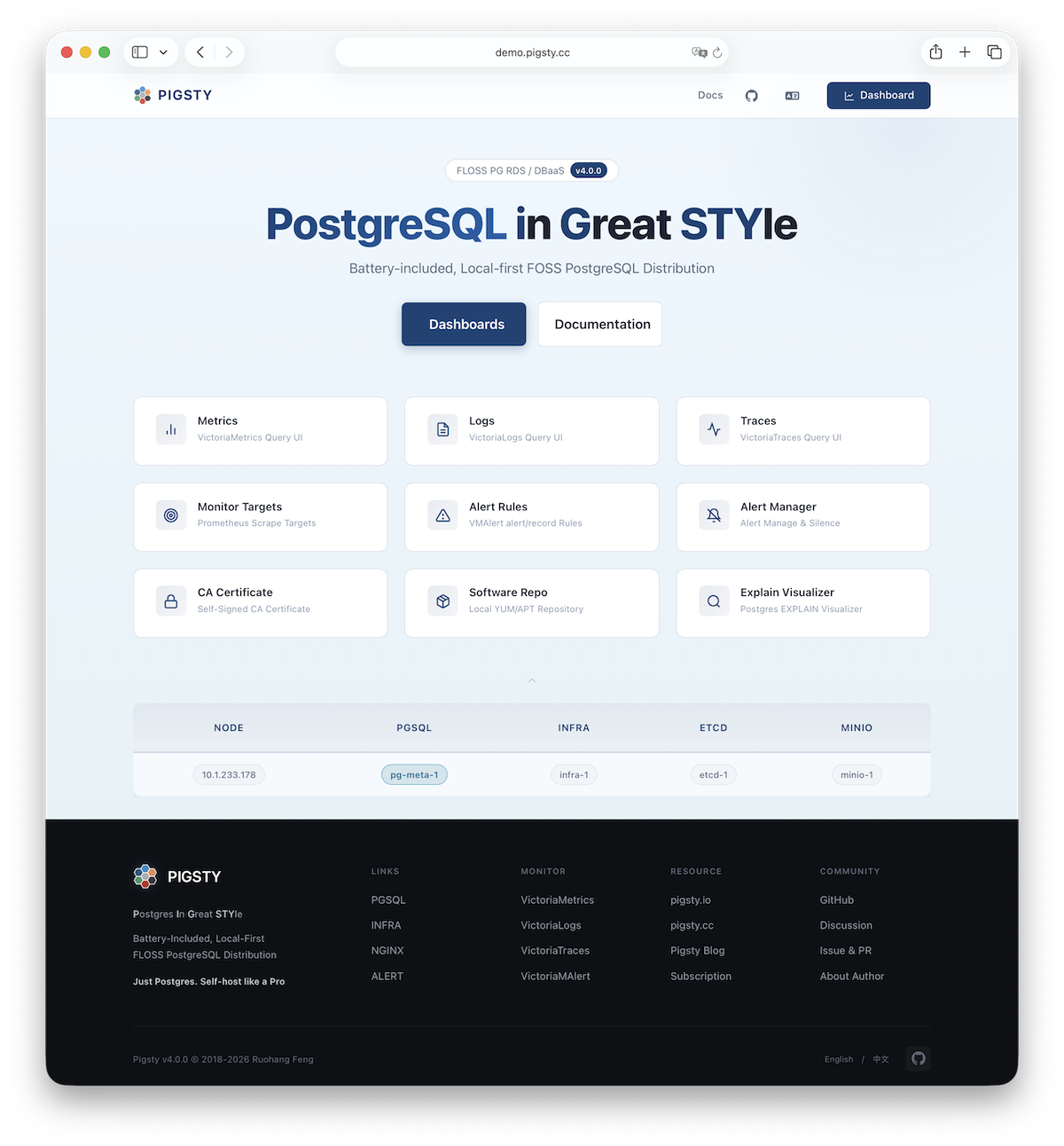
After installation, access the WebUI via IP/domain + ports 80/443,
and PostgreSQL service via port 5432.
Full installation takes 3-10 minutes depending on specs/network. Offline installation significantly speeds this up; slim installation further accelerates when monitoring isn’t needed.
Video Example: 20-node Production Simulation (Ubuntu 24.04 x86_64)
Prepare
Production Pigsty deployment involves preparation work. Here’s the complete checklist:
./configure -g # Use wizard to generate config with random passwords
The generated config defaults to ~/pigsty/pigsty.yml. Review and customize before installation.
Many configuration templates are available for reference. You can skip the wizard and directly edit pigsty.yml:
./configure -c ha/full -g # Use 4-node sandbox template./configure -c ha/trio -g # Use 3-node minimal HA template./configure -c ha/dual -g -v 17# Use 2-node semi-HA template with PG 17./configure -c ha/simu -s # Use 20-node production simulation, skip IP check, no random passwords
Example configure output
vagrant@meta:~/pigsty$ ./configure
configure pigsty v4.0.0 begin
[ OK ]region= china
[ OK ]kernel= Linux
[ OK ]machine= x86_64
[ OK ]package= deb,apt
[ OK ]vendor= ubuntu (Ubuntu)[ OK ]version=22(22.04)[ OK ]sudo= vagrant ok
[ OK ]ssh=[email protected] ok
[WARN] Multiple IP address candidates found:
(1) 192.168.121.38 inet 192.168.121.38/24 metric 100 brd 192.168.121.255 scope global dynamic eth0
(2) 10.10.10.10 inet 10.10.10.10/24 brd 10.10.10.255 scope global eth1
[ OK ]primary_ip= 10.10.10.10 (from demo)[ OK ]admin=[email protected] ok
[ OK ]mode= meta (ubuntu22.04)[ OK ]locale= C.UTF-8
[ OK ]ansible= ready
[ OK ] pigsty configured
[WARN] don't forget to check it and change passwords!
proceed with ./deploy.yml
The wizard only replaces the current node’s IP (use -s to skip replacement). For multi-node deployments, replace other node IPs manually.
Also customize the config as needed—modify default passwords, add nodes, etc.
Common configure parameters:
Parameter
Description
-c|--conf
Specify config template relative to conf/, without .yml suffix
-v|--version
PostgreSQL major version: 13, 14, 15, 16, 17, 18
-r|--region
Upstream repo region for faster downloads: default|china|europe
-n|--non-interactive
Use CLI params for primary IP, skip interactive wizard
-x|--proxy
Configure proxy_env from current environment variables
If your machine has multiple IPs, explicitly specify one with -i|--ip <ipaddr> or provide it interactively.
The script replaces IP placeholder 10.10.10.10 with the current node’s primary IPv4. Use a static IP; never use public IPs.
Generated config is at ~/pigsty/pigsty.yml. Review and modify before installation.
Change default passwords!
We strongly recommend modifying default passwords and credentials before installation. See Security Hardening.
When output ends with pgsql init done, PLAY RECAP, etc., installation is complete!
Upstream repo changes may cause online installation failures!
Upstream repos (Linux/PGDG) may break due to improper updates, causing deployment failures (quite common)!
For serious production deployments, we strongly recommend using verified offline packages for offline installation.
Avoid running deploy playbook repeatedly!
Warning: Running deploy.yml again on an initialized environment may restart services and overwrite configs. Be careful!
Interface
Assuming the 4-node deployment template, your Pigsty environment should have a structure like:
Production deployment preparation including hardware, nodes, disks, network, VIP, domain, software, and filesystem requirements.
Pigsty runs on nodes (physical machines or VMs). This document covers the planning and preparation required for deployment.
Node
Pigsty currently runs on Linux kernel with x86_64 / aarch64 architecture.
A “node” refers to an SSH accessible resource that provides a bare Linux OS environment.
It can be a physical machine, virtual machine, or a systemd-enabled container equipped with systemd, sudo, and sshd.
Deploying Pigsty requires at least 1 node. You can prepare more and deploy everything in one pass via playbooks, or add nodes later.
The minimum spec requirement is 1C1G, but at least 1C2G is recommended. Higher is better—no upper limit. Parameters are auto-tuned based on available resources.
The number of nodes you need depends on your requirements. See Architecture Planning for details.
Although a single-node deployment with external backup provides reasonable recovery guarantees,
we recommend multiple nodes for production. A functioning HA setup requires at least 3 nodes; 2 nodes provide Semi-HA.
Disk
Pigsty uses /data as the default data directory. If you have a dedicated data disk, mount it there.
Use /data1, /data2, /dataN for additional disk drives.
To use a different data directory, configure these parameters:
You can use any supported Linux filesystem for data disks. For production, we recommend xfs.
xfs is a Linux standard with excellent performance and CoW capabilities for instant large database cluster cloning. MinIO requires xfs.
ext4 is another viable option with a richer data recovery tool ecosystem, but lacks CoW.
zfs provides RAID and snapshot features but with significant performance overhead and requires separate installation.
Choose among these three based on your needs. Avoid NFS for database services.
Pigsty assumes /data is owned by root:root with 755 permissions.
Admins can assign ownership for first-level directories; each application runs with a dedicated user in its subdirectory.
See FHS for the directory structure reference.
Network
Pigsty defaults to online installation mode, requiring outbound Internet access.
Offline installation eliminates the Internet requirement.
Internally, Pigsty requires a static network. Assign a fixed IPv4 address to each node.
The IP address serves as the node’s unique identifier—the primary IP bound to the main network interface for internal communications.
For single-node deployment without a fixed IP, use the loopback address 127.0.0.1 as a workaround.
Never use Public IP as identifier
Using public IP addresses as node identifiers can cause security and connectivity issues. Always use internal IP addresses.
VIP
Pigsty supports optional L2 VIP for NODE clusters (keepalived) and PGSQL clusters (vip-manager).
To use L2 VIP, you must explicitly assign an L2 VIP address for each node/database cluster.
This is straightforward on your own hardware but may be challenging in public cloud environments.
L2 VIP requires L2 Networking
To use optional Node VIP and PG VIP features, ensure all nodes are on the same L2 network.
CA
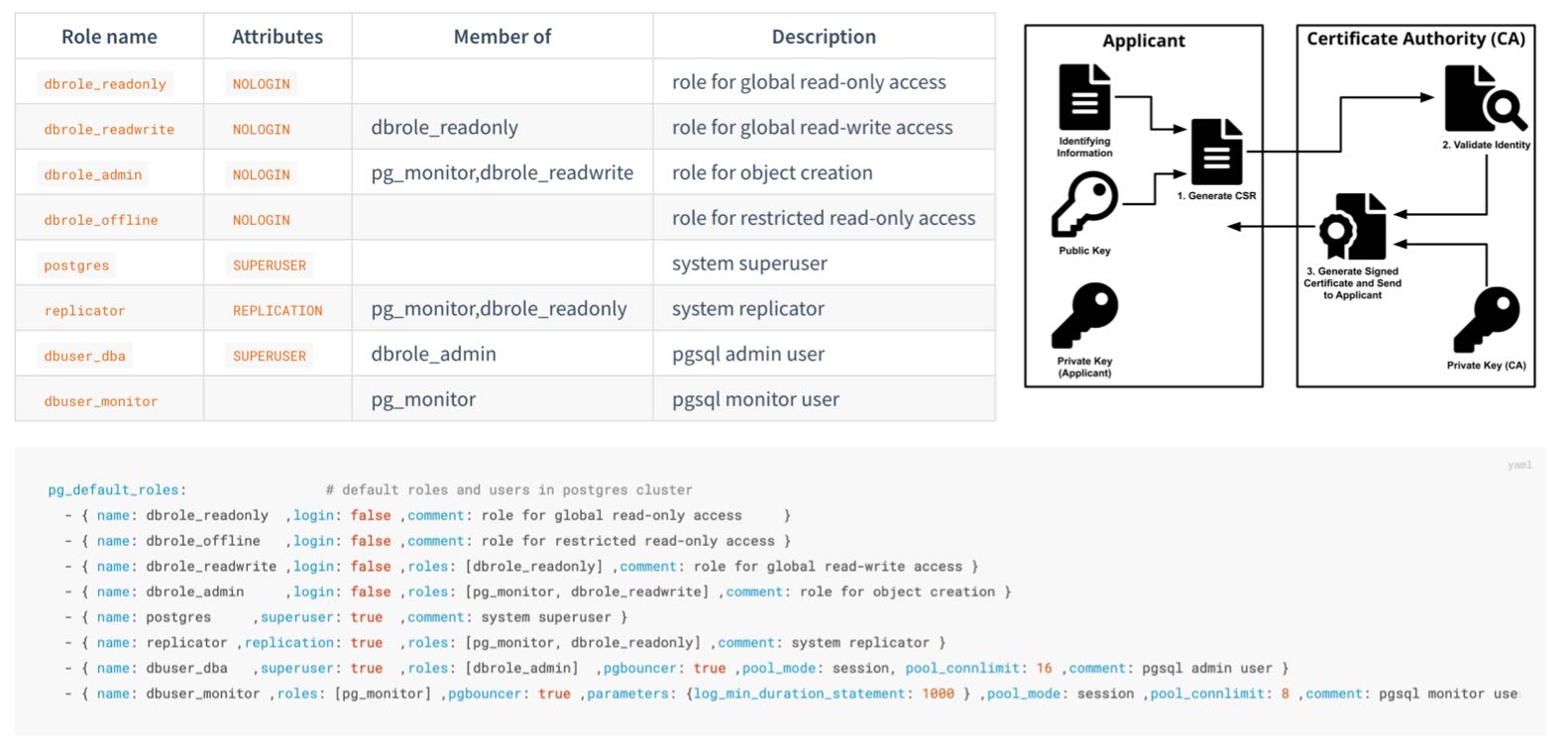
Pigsty generates a self-signed CA infrastructure for each deployment, issuing all encryption certificates.
If you have an existing enterprise CA or self-signed CA, you can use it to issue the certificates Pigsty requires.
Domain
Pigsty uses a local static domain i.pigsty by default for WebUI access. This is optional—IP addresses work too.
For production, domain names are recommended to enable HTTPS and encrypted data transmission.
Domains also allow multiple services on the same port, differentiated by domain name.
For Internet-facing deployments, use public DNS providers (Cloudflare, AWS Route53, etc.) to manage resolution.
Point your domain to the Pigsty node’s public IP address.
For LAN/office network deployments, use internal DNS servers with the node’s internal IP address.
For local-only access, add the following to /etc/hosts on machines accessing the Pigsty WebUI:
10.10.10.10 i.pigsty # Replace with your domain and Pigsty node IP
Linux
Pigsty runs on Linux. It supports 14 mainstream distributions: Compatible OS List
We recommend RockyLinux 10.0, Debian 13.2, or Ubuntu 24.04.2 as default options.
On macOS and Windows, use VM software or Docker systemd images to run Pigsty.
We strongly recommend a fresh OS installation. If your server already runs Nginx, PostgreSQL, or similar services, consider deploying on new nodes.
Use the same OS version on all nodes
For multi-node deployments, ensure all nodes use the same Linux distribution, architecture, and version. Heterogeneous deployments may work but are unsupported and may cause unpredictable issues.
Locale
We recommend setting en_US as the primary OS language, or at minimum ensuring this locale is available, so PostgreSQL logs are in English.
Some distributions (e.g., Debian) may not provide the en_US locale by default. Enable it with:
For PostgreSQL, we strongly recommend using the built-in C.UTF-8 collation (PG 17+) as the default.
The configuration wizard automatically sets C.UTF-8 as the collation when PG version and OS support are detected.
Ansible
Pigsty uses Ansible to control all managed nodes from the admin node.
See Installing Ansible for details.
Pigsty installs Ansible on Infra nodes by default, making them usable as admin nodes (or backup admin nodes).
For single-node deployment, the installation node serves as both the admin node running Ansible and the INFRA node hosting infrastructure.
Pigsty
You can install the latest stable Pigsty source with:
Your architecture choice depends on reliability requirements and available resources.
Serious production deployments require at least 3 nodes for HA configuration.
With only 2 nodes, use Semi-HA configuration.
Pigsty monitoring requires at least 1 INFRA node. Production typically uses 2; large-scale deployments use 3.
PostgreSQL HA requires at least 1 ETCD node. Production typically uses 3; large-scale uses 5. Must be odd numbers.
Object storage (MinIO) requires at least 1MINIO node. Production typically uses 4+ nodes in MNMD clusters.
Production PG clusters typically use at least two-node primary-replica configuration; serious deployments use 3 nodes; high read loads can have dozens of replicas.
For PostgreSQL, you can also use advanced configurations: offline instances, sync instances, standby clusters, delayed clusters, etc.
Single-Node Setup
The simplest configuration with everything on a single node. Installs four essential modules by default. Typically used for demos, devbox, or testing.
With proper virtualization infrastructure or abundant resources, you can use more nodes for dedicated deployment of each module, achieving optimal reliability, observability, and performance.
Admin user, sudo, SSH, accessibility verification, and firewall configuration
Pigsty requires an OS admin user with passwordless SSH and Sudo privileges on all managed nodes.
This user must be able to SSH to all managed nodes and execute sudo commands on them.
User
Typically use names like dba or admin, avoiding root and postgres:
Using root for deployment is possible but not a production best practice.
Using postgres (pg_dbsu) as admin user is strictly prohibited.
Passwordless
The passwordless requirement is optional if you can accept entering a password for every ssh and sudo command.
Use -k|--ask-pass when running playbooks to prompt for SSH password,
and -K|--ask-become-pass to prompt for sudo password.
./deploy.yml -k -K
Some enterprise security policies may prohibit passwordless ssh or sudo. In such cases, use the options above,
or consider configuring a sudoers rule with a longer password cache time to reduce password prompts.
Create Admin User
Typically, your server/VM provider creates an initial admin user.
If unsatisfied with that user, Pigsty’s deployment playbook can create a new admin user for you.
Assuming you have root access or an existing admin user on the node, create an admin user with Pigsty itself:
All admin users should have sudo privileges on all managed nodes, preferably with passwordless execution.
To configure an admin user with passwordless sudo from scratch, edit/create a sudoers file (assuming username vagrant):
echo'%vagrant ALL=(ALL) NOPASSWD: ALL'| sudo tee /etc/sudoers.d/vagrant
For admin user dba, the /etc/sudoers.d/dba content should be:
%dba ALL=(ALL) NOPASSWD: ALL
If your security policy prohibits passwordless sudo, remove the NOPASSWD: part:
%dba ALL=(ALL) ALL
Ansible relies on sudo to execute commands with root privileges on managed nodes.
In environments where sudo is unavailable (e.g., inside Docker containers), install sudo first.
SSH
Your current user should have passwordless SSH access to all managed nodes as the corresponding admin user.
Your current user can be the admin user itself, but this isn’t required—as long as you can SSH as the admin user.
SSH configuration is Linux 101, but here are the basics:
Pigsty will do this for you during the bootstrap stage if you lack a key pair.
Copy SSH Key
Distribute your generated public key to remote (and local) servers, placing it in the admin user’s ~/.ssh/authorized_keys file on all nodes.
Use the ssh-copy-id utility:
When direct SSH access is unavailable (jumpserver, non-standard port, different credentials), configure SSH aliases in ~/.ssh/config:
Host meta
HostName 10.10.10.10
User dba # Different user on remote IdentityFile /etc/dba/id_rsa # Non-standard key Port 24# Non-standard port
Reference the alias in the inventory using ansible_host for the real SSH alias:
nodes:hosts:# If node `10.10.10.10` requires SSH alias `meta`10.10.10.10:{ansible_host:meta } # Access via `ssh meta`
SSH parameters work directly in Ansible. See Ansible Inventory Guide for details.
This technique enables accessing nodes in private networks via jumpservers, or using different ports and credentials,
or using your local laptop as an admin node.
Check Accessibility
You should be able to passwordlessly ssh from the admin node to all managed nodes as your current user.
The remote user (admin user) should have privileges to run passwordless sudo commands.
To verify passwordless ssh/sudo works, run this command on the admin node for all managed nodes:
ssh <ip|alias> 'sudo ls'
If there’s no password prompt or error, passwordless ssh/sudo is working as expected.
Firewall
Production deployments typically require firewall configuration to block unauthorized port access.
By default, block inbound access from office/Internet networks except:
SSH port 22 for node access
HTTP (80) / HTTPS (443) for WebUI services
PostgreSQL port 5432 for database access
If accessing PostgreSQL via other ports, allow them accordingly.
See used ports for the complete port list.
5432: PostgreSQL database
6432: Pgbouncer connection pooler
5433: PG primary service
5434: PG replica service
5436: PG default service
5438: PG offline service
5 - Sandbox
4-node sandbox environment for learning, testing, and demonstration
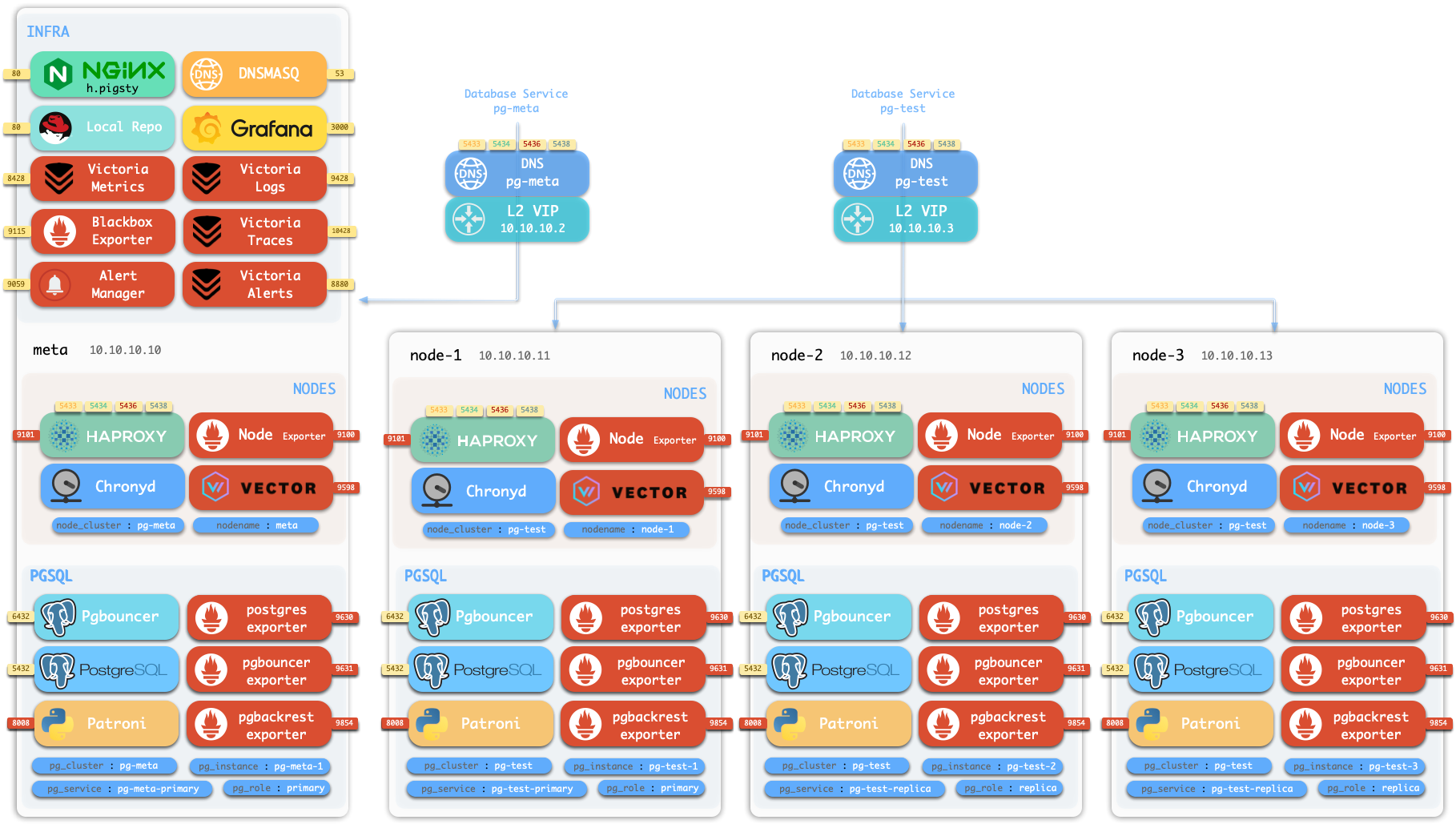
Pigsty provides a standard 4-node sandbox environment for learning, testing, and feature demonstration.
The sandbox uses fixed IP addresses and predefined identity identifiers, making it easy to reproduce various demo use cases.
Description
The default sandbox environment consists of 4 nodes, using the ha/full.yml configuration template.
ID
IP Address
Node
PostgreSQL
INFRA
ETCD
MINIO
1
10.10.10.10
meta
pg-meta-1
infra-1
etcd-1
minio-1
2
10.10.10.11
node-1
pg-test-1
3
10.10.10.12
node-2
pg-test-2
4
10.10.10.13
node-3
pg-test-3
The sandbox configuration can be summarized as the following config:
After installing VirtualBox, you need to restart your system and allow its kernel extensions in System Preferences.
On Linux, you can use VirtualBox or vagrant-libvirt as the VM provider.
Create Virtual Machines
Use the Pigsty-provided make shortcuts to create virtual machines:
cd ~/pigsty
make meta # 1 node devbox for quick start, development, and testingmake full # 4 node sandbox for HA testing and feature demonstrationmake simu # 20 node simubox for production environment simulation# Other less common specsmake dual # 2 node environmentmake trio # 3 node environmentmake deci # 10 node environment
You can use variant aliases to specify different operating system images:
make meta9 # Create single node with RockyLinux 9make full12 # Create 4-node sandbox with Debian 12make simu24 # Create 20-node simubox with Ubuntu 24.04
simu.rb provides a 20-node production environment simulation configuration:
3 x infra nodes (meta1-3): 4c16g
2 x haproxy nodes (proxy1-2): 1c2g
4 x minio nodes (minio1-4): 1c2g
5 x etcd nodes (etcd1-5): 1c2g
6 x pgsql nodes (pg-src-1-3, pg-dst-1-3): 2c4g
Config Script
Use the vagrant/config script to generate the final Vagrantfile based on spec and options:
cd ~/pigsty
vagrant/config [spec][image][scale][provider]# Examplesvagrant/config meta # Use 1-node spec with default EL9 imagevagrant/config dual el9 # Use 2-node spec with EL9 imagevagrant/config trio d12 2# Use 3-node spec with Debian 12, double resourcesvagrant/config full u22 4# Use 4-node spec with Ubuntu 22, 4x resourcesvagrant/config simu u24 1 libvirt # Use 20-node spec with Ubuntu 24, libvirt provider
Image Aliases
The config script supports various image aliases:
Distro
Alias
Vagrant Box
CentOS 7
el7, 7, centos
generic/centos7
Rocky 8
el8, 8, rocky8
bento/rockylinux-9
Rocky 9
el9, 9, rocky9, el
bento/rockylinux-9
Rocky 10
el10, rocky10
rockylinux/10
Debian 11
d11, 11, debian11
generic/debian11
Debian 12
d12, 12, debian12
generic/debian12
Debian 13
d13, 13, debian13
cloud-image/debian-13
Ubuntu 20.04
u20, 20, ubuntu20
generic/ubuntu2004
Ubuntu 22.04
u22, 22, ubuntu22, ubuntu
generic/ubuntu2204
Ubuntu 24.04
u24, 24, ubuntu24
bento/ubuntu-24.04
Resource Scaling
You can use the VM_SCALE environment variable to adjust the resource multiplier (default is 1):
VM_SCALE=2 vagrant/config meta # Double the CPU/memory resources for meta spec
For example, using VM_SCALE=4 with the meta spec will adjust the default 2c4g to 8c16g:
The simu spec doesn’t support resource scaling. The scale parameter will be automatically ignored because its resource configuration is already optimized for simulation scenarios.
VM Management
Pigsty provides a set of Makefile shortcuts for managing virtual machines:
make # Equivalent to make startmake new # Destroy existing VMs and create new onesmake ssh # Write VM SSH config to ~/.ssh/ (must run after creation)make dns # Write VM DNS records to /etc/hosts (optional)make start # Start VMs and configure SSH (up + ssh)make up # Start VMs with vagrant upmake halt # Shutdown VMs (alias: down, dw)make clean # Destroy VMs (alias: del, destroy)make status # Show VM status (alias: st)make pause # Pause VMs (alias: suspend)make resume # Resume VMsmake nuke # Destroy all VMs and volumes with virsh (libvirt only)make info # Show libvirt info (VMs, networks, storage volumes)
SSH Keys
Pigsty Vagrant templates use your ~/.ssh/id_rsa[.pub] as the SSH key for VMs by default.
Before starting, ensure you have a valid SSH key pair. If not, generate one with:
You can find more available Box images on Vagrant Cloud.
Environment Variables
You can use the following environment variables to control Vagrant behavior:
exportVM_SPEC='meta'# Spec nameexportVM_IMAGE='bento/rockylinux-9'# Image nameexportVM_SCALE='1'# Resource scaling multiplierexportVM_PROVIDER='virtualbox'# Virtualization providerexportVAGRANT_EXPERIMENTAL=disks # Enable experimental disk features
Notes
VirtualBox Network Configuration
When using older versions of VirtualBox as Vagrant provider, additional configuration is required to use 10.x.x.x CIDR as Host-Only network:
echo"* 10.0.0.0/8"| sudo tee -a /etc/vbox/networks.conf
First-time image download is slow
The first time you use Vagrant to start a specific operating system, it will download the corresponding Box image file (typically 1-2 GB). After download, the image is cached and reused for subsequent VM creation.
libvirt Provider
If you’re using libvirt as the provider, you can use make info to view VMs, networks, and storage volume information, and make nuke to forcefully destroy all related resources.
7 - Terraform
Create virtual machine environment on public cloud with Terraform
Terraform is a popular “Infrastructure as Code” tool that you can use to create virtual machines on public clouds with one click.
Pigsty provides Terraform templates for Alibaba Cloud, AWS, and Tencent Cloud as examples.
Quick Start
Install Terraform
On macOS, you can use Homebrew to install Terraform:
Use the ssh script to automatically configure SSH aliases and distribute keys:
./ssh # Write SSH config to ~/.ssh/pigsty_config and copy keys
This script writes the IP addresses from Terraform output to ~/.ssh/pigsty_config and automatically distributes SSH keys using the default password PigstyDemo4.
After configuration, you can login directly using hostnames:
ssh meta # Login using hostname instead of IP
Using SSH Config File
If you want to use the configuration in ~/.ssh/pigsty_config, ensure your ~/.ssh/config includes:
Include ~/.ssh/pigsty_config
Destroy Resources
After testing, you can destroy all created cloud resources with one click:
terraform destroy
Template Specs
Pigsty provides multiple predefined cloud resource templates in the terraform/spec/ directory:
When using a template, copy the template file to terraform.tf:
cd ~/pigsty/terraform
cp spec/aliyun-full.tf terraform.tf # Use Alibaba Cloud 4-node sandbox templateterraform init && terraform apply
Variable Configuration
Pigsty’s Terraform templates use variables to control architecture, OS distribution, and resource configuration:
Architecture and Distribution
variable"architecture" {
description="Architecture type (amd64 or arm64)" type=string default="amd64" # Comment this line to use arm64
#default = "arm64" # Uncomment to use arm64
}
variable"distro" {
description="Distribution code (el8,el9,el10,u22,u24,d12,d13)" type=string default="el9" # Default uses Rocky Linux 9
}
Resource Configuration
The following resource parameters can be configured in the locals block:
locals {
bandwidth=100 # Public bandwidth (Mbps)
disk_size=40 # System disk size (GB)
spot_policy="SpotWithPriceLimit" # Spot policy: NoSpot, SpotWithPriceLimit, SpotAsPriceGo
spot_price_limit=5 # Max spot price (only effective with SpotWithPriceLimit)
}
Alibaba Cloud Configuration
Credential Setup
Add your Alibaba Cloud credentials to environment variables, for example in ~/.bash_profile or ~/.zshrc:
Tencent Cloud templates are community-contributed examples and may need adjustments based on your specific requirements.
Shortcut Commands
Pigsty provides some Makefile shortcuts for Terraform operations:
cd ~/pigsty/terraform
make u # terraform apply -auto-approve + configure SSHmake d # terraform destroy -auto-approvemake apply # terraform apply (interactive confirmation)make destroy # terraform destroy (interactive confirmation)make out # terraform outputmake ssh # Run ssh script to configure SSH accessmake r # Reset terraform.tf to repository state
Notes
Cloud Resource Costs
Cloud resources created with Terraform incur costs. After testing, promptly use terraform destroy to destroy resources to avoid unnecessary expenses.
It’s recommended to use pay-as-you-go instance types for testing. Templates default to using Spot Instances to reduce costs.
Default Password
The default root password for VMs in all templates is PigstyDemo4. In production environments, be sure to change this password or use SSH key authentication.
Security Group Configuration
Terraform templates automatically create security groups and open necessary ports (all TCP ports open by default). In production environments, adjust security group rules according to actual needs, following the principle of least privilege.
SSH Access
After creation, SSH login to the admin node using:
ssh root@<public_ip>
You can also use ./ssh or make ssh to write SSH aliases to the config file, then login using ssh pg-meta.
8 - Security
Security considerations for production Pigsty deployment
Pigsty’s default configuration is sufficient to cover the security needs of most scenarios.
Pigsty already provides out-of-the-box authentication and access control models that are secure enough for most scenarios.
If you want to further harden system security, here are some recommendations:
Confidentiality
Important Files
Protect your pigsty.yml configuration file or CMDB
The pigsty.yml configuration file usually contains highly sensitive confidential information. You should ensure its security.
Strictly control access permissions to admin nodes, limiting access to DBAs or Infra administrators only.
Strictly control access permissions to the pigsty.yml configuration file repository (if you manage it with git)
Protect your CA private key and other certificates, these files are very important.
Related files are generated by default in the files/pki directory under the Pigsty source directory on the admin node.
You should regularly back them up to a secure location.
Passwords
You MUST change these passwords when deploying to production, don’t use defaults!
Don’t log password change statements to postgres logs or other logs
SET log_statement TO 'none';ALTER USER "{{ user.name }}" PASSWORD '{{ user.password }}';SET log_statement TO DEFAULT;
IP Addresses
Bind specified IP addresses for postgres/pgbouncer/patroni, not all addresses.
The default pg_listen address is 0.0.0.0, meaning all IPv4 addresses.
Consider using pg_listen: '${ip},${vip},${lo}' to bind to specific IP address(es) for enhanced security.
Don’t expose any ports directly to public IP, except infrastructure egress Nginx ports (default 80/443)
For convenience, components like Prometheus/Grafana listen on all IP addresses by default and can be accessed directly via public IP ports
You can modify their configurations to listen only on internal IP addresses, restricting access through the Nginx portal via domain names only. You can also use security groups or firewall rules to implement these security restrictions.
For convenience, Redis servers listen on all IP addresses by default. You can modify redis_bind_address to listen only on internal IP addresses.